Why is an out of office notice important for professionals and job seekers?
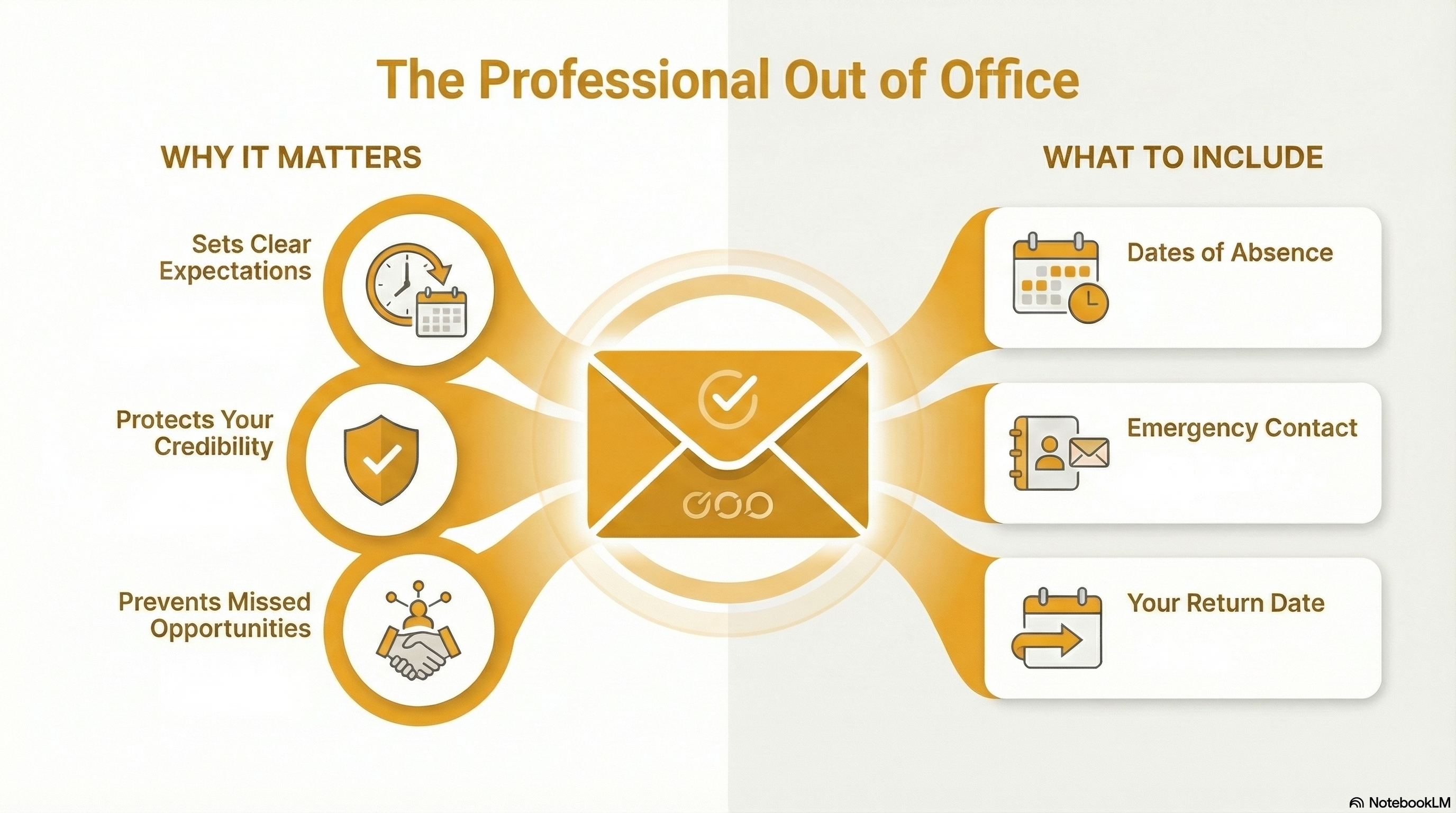
An out of office notice sets clear expectations when you’re unavailable. It prevents missed opportunities, reassures senders their message wasn’t ignored, and protects your professional credibility while you’re away.
Email doesn’t pause just because you do.
Whether you’re on vacation, traveling for interviews, attending a conference, or stepping away for a few days, messages keep landing, and silence is often misread as disinterest or disorganization.
That’s why you need an out of office notice to keep things smooth.
A well-written OOO message sets expectations before confusion kicks in.
It tells people when you’ll respond, who they should contact in the meantime, and most importantly, that their message hasn’t been ignored.
For professionals and job seekers alike, this small automation protects credibility, keeps conversations warm, and prevents missed opportunities.
This guide explains what an out of office notice is, what to include, and how to set one up in Gmail on desktop and mobile.
What is an out of office notice?
An out of office (OOO) notice is an automated email response that notifies senders you are currently away from your work. It typically includes the duration of your absence, your expected return date, and the contact details of a colleague who can assist with urgent matters.
This simple tool manages communication expectations effectively.
It prevents the frustration of "radio silence" and ensures that your professional relationships remain intact. Think of it as a digital placeholder that maintains your reputation while you are offline.
What are the must-have elements of an OOO message?
A professional out of office notice must include five key elements: the exact dates of your absence, the reason for your leave (optional but helpful), your return date, an emergency contact person, and a statement regarding your email access.
These details provide the sender with everything they need to proceed.
Instead of saying "I'll be back next week," specify the date.
If you are a job seeker, mention that you are unavailable to ensure you don't miss opportunities while emailing a resume to recruiter or waiting for interview invites.
What are some professional out of office notice examples?
Professional out of office notice examples range from "short and sweet" to "detailed and resourceful." A standard template reads: "I am out of the office from [Date] to [Date] and will not have email access. For urgent matters, please contact [Colleague Name] at [Email]. Otherwise, I will respond to your message on [Date]."
According to surveys, nearly 25% of people cite "not getting a response" as their top email annoyance. To avoid frustrating your network, use one of the following templates:
Sample 1: The Standard Professional Notice (For Employees)
Subject: Out of Office: [Your Name] until [Date]
"Hi there,
Thanks for your email. I am currently out of the office for [Reason, e.g., a planned break] and will not have access to my inbox. I plan to return on [Date].
If you require immediate assistance, please contact [Colleague's Name] at [Email Address]. Otherwise, I will respond to your message as soon as possible after my return.
Best regards, [Your Name]"
Sample 2: The Job Seeker’s Notice (For Active Candidates)
Subject: Out of Office: [Your Name] - Limited Access
"Hello,
Thank you for reaching out. I am currently traveling with limited email access until [Date]. I remain very interested in our conversation and look forward to connecting soon.
I will prioritize responding to your message immediately upon my return. In the meantime, you can find more details about my background and resume on my professional site. Thank you for your patience!
Best, [Your Name]"
If you are worried about your current applications, remember that a clear notice is much better than leaving a recruiter wondering.
How do I set up an out of office notice in Gmail?
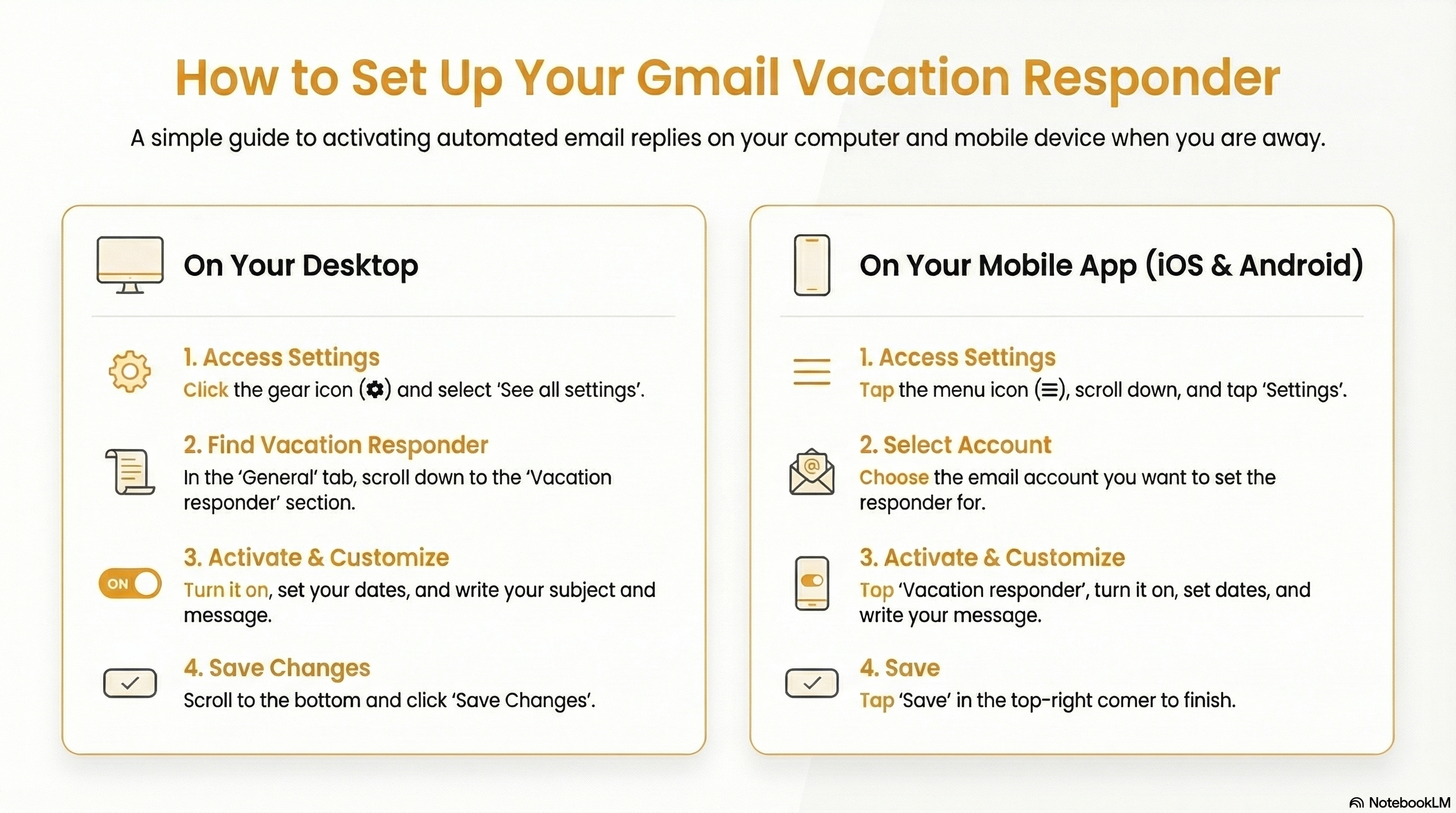
To set up an out of office notice in Gmail, open "Settings" and select "See all settings." Scroll down the "General" tab to find the "Vacation responder" section. Turn it on, define your date range, write your subject and message, and then click "Save Changes" at the bottom of the page.
Here's a step by step breakdown for desktop and mobile app:
Step-by-step (desktop)
- Open Gmail and click the gear icon (⚙️) in the top-right corner
- Select See all settings
- Stay on the General tab and scroll down to Vacation responder
- Toggle Vacation responder on
- Set your dates First day: when replies should start and Last day: optional -leave blank if you want it to stay on until you turn it off
- Add a Subject and Message
- (Optional) Check “Only send a response to people in my Contacts” if you don’t want external senders to receive it
- Click Save Changes at the bottom
Step-by-step (Android & iOS)
- Open the Gmail app on your phone
- Tap the menu icon (☰) in the top-left corner
- Scroll down and tap Settings
- Select the email account you want to configure
- Tap Vacation responder
- Toggle Vacation responder on
- Set your Start date (and End date, if needed)
- Add your Subject and Message
- Tap Save (top-right)
Wrapping Up
An out of office notice may seem minor, but it reflects how thoughtfully you manage professional communication.
Clear expectations, timely responses, and preparedness all signal reliability; especially during a job search or interview process.
If you’re thinking about the broader picture of staying organized and opportunity-ready, Hiration supports that same mindset by helping job seekers keep their resumes, cover letters, interview responses, and LinkedIn profiles sharp and up to date, even when timing isn’t perfect.
Small systems like these add up to a more consistent, professional experience overall.
Out of Office Notice — FAQs
What is an out of office (OOO) notice?
An out of office notice is an automated email response that informs senders you are temporarily unavailable and indicates when you’ll respond.
What should a professional OOO message include?
A clear absence period, return date, optional reason, contact person for urgent matters, and whether you have limited or no email access.
Should job seekers use an out of office notice?
Yes. It reassures recruiters that your lack of response is temporary and signals continued interest rather than disengagement.
Is it okay to keep an OOO message short?
Absolutely. Clear and concise messages are often preferred, as long as key details like dates and next steps are included.
How do I turn off my out of office notice in Gmail?
Go back to Gmail settings, scroll to Vacation responder, toggle it off, and save changes once you’re available again.
Should I send OOO replies to everyone?
It depends. Gmail allows you to limit responses to contacts only, which can be useful if you want to avoid automated replies to external senders.